Schall AI Local Connector
Makes Ollama and ComfyUI usable on your own Mac for your WordPress website – end-to-end encrypted and without port forwarding.
The Local Connector is an app for your computer. It connects your WordPress website with AI models running on your own machine: text models from Ollama and, with a separate approval, image models from ComfyUI. The Connector establishes the connection from your computer; there is nothing to configure on your router.
Coming soon.
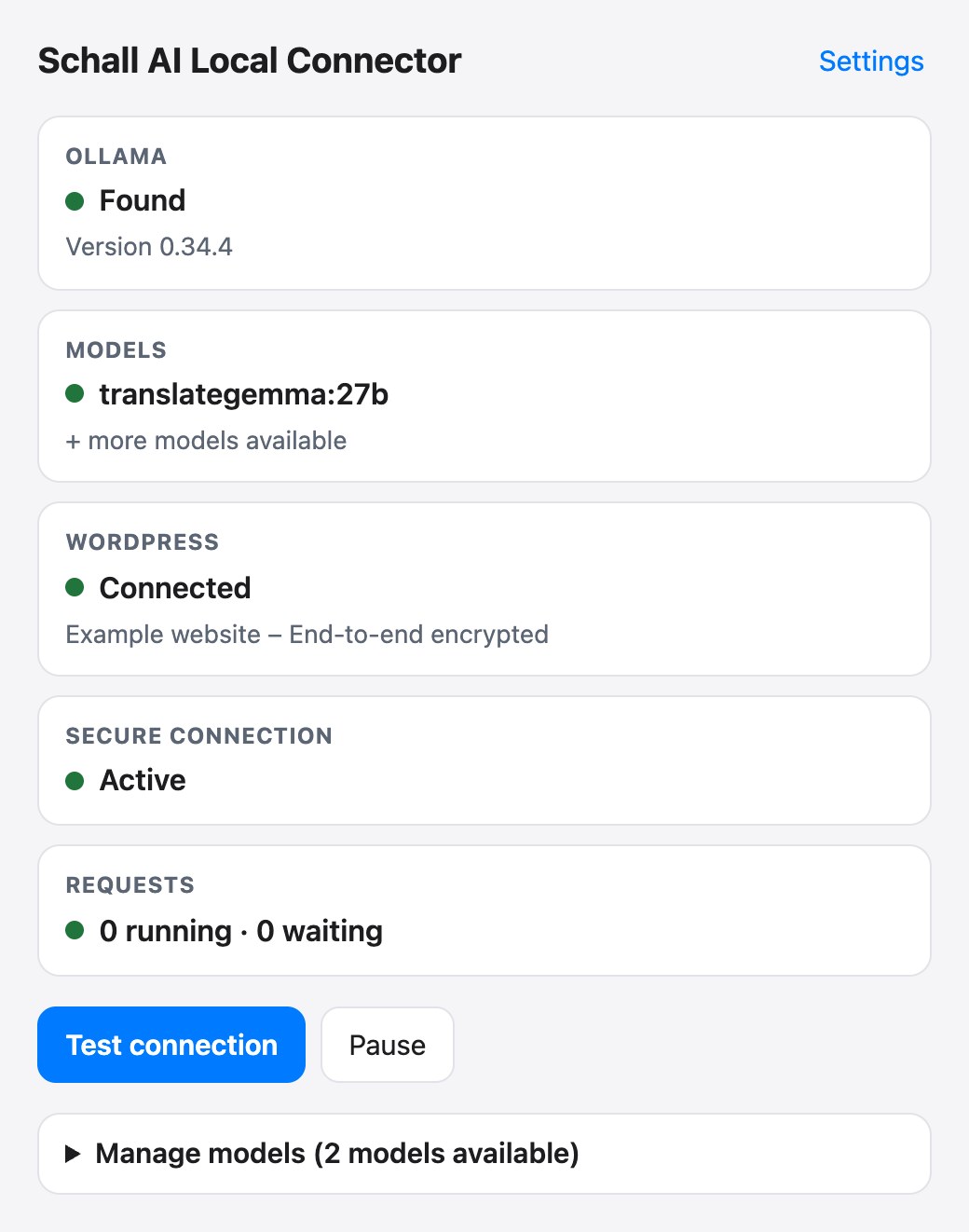
01 — Overview
Your models, your hardware.
Your own hardware instead of AI providers
Your own computer answers your website's AI requests. No AI provider is involved, so there are no provider costs for local requests.
Without port forwarding or a static IP
The Connector only establishes outgoing connections. Port forwarding, a static IP address, and router settings are not required.
End-to-end encrypted
Texts and responses are encrypted between WordPress and your computer. The Connector does not store or log any content.
You decide on every approval
Only the website whose address you confirmed can reach your computer, and only the models you approve. Image approvals apply per plugin and can be revoked at any time.
Text and images in an orderly sequence
A guardian divides the computer between text and image tasks. Text takes priority, and two image tasks never start at the same time.
Reliable in everyday life
If your computer sleeps or the Connector is paused, the tasks wait in WordPress or go to a configured backup provider.
02 — How it works
Connected in five steps.
01
Set up Ollama
You install Ollama with at least one model, and additionally ComfyUI on the same computer for images.
02
Install connector
The Connector appears in the menu bar and continues to work even when the window is closed.
03
Couple with the website
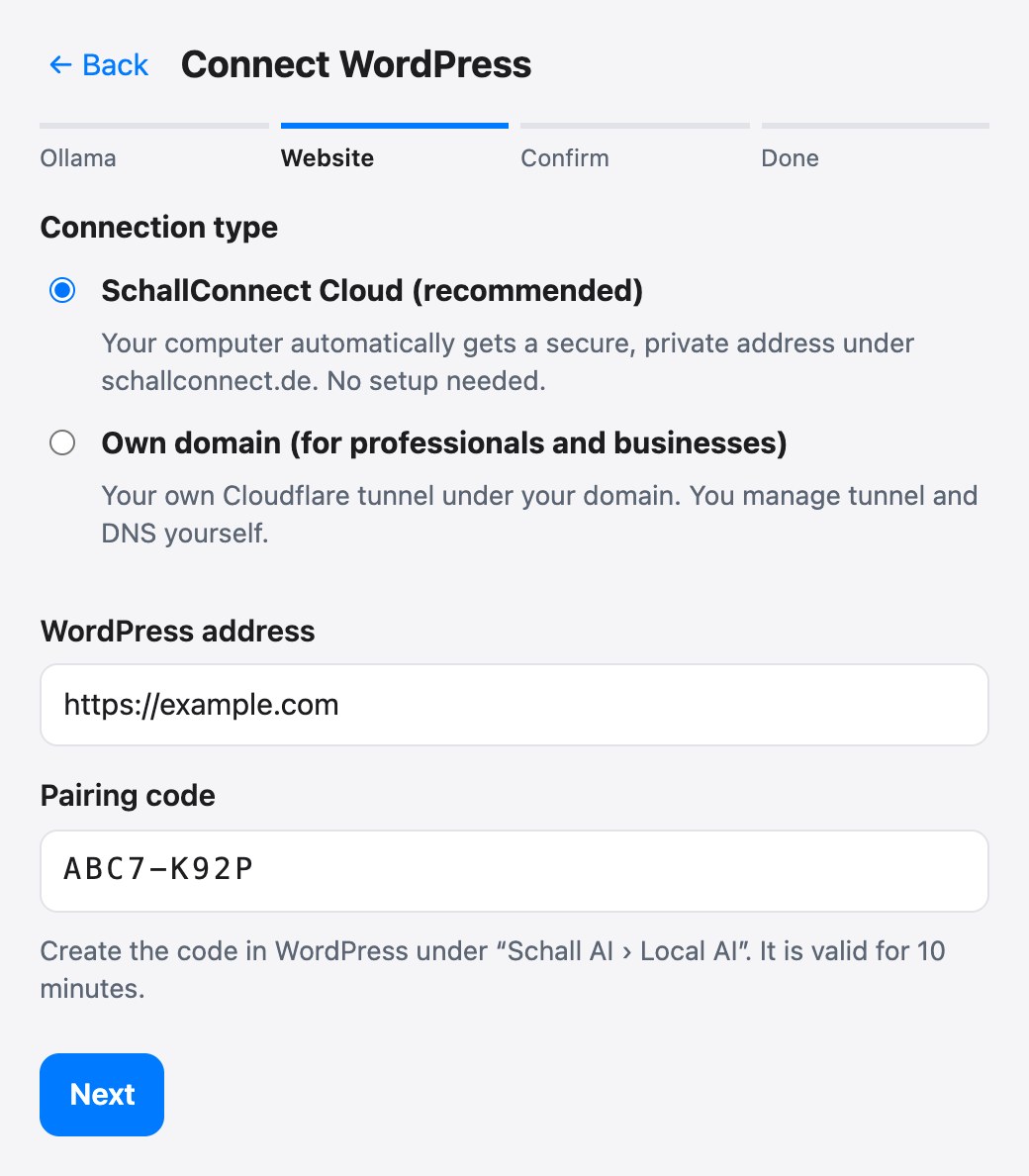
Under Schall AI › Local AI, you generate a pairing code, enter it in the Connector and confirm your website’s address.
04
Enable models
You unlock text models for WordPress; you check and confirm image models individually for each plugin.
05
Select in the plugin
In the AI settings of a Schall plugin, select the Local Connector and a shared model.
03 — Features
What the Connector does for you.
Pairing
Connected via a code from WordPress.
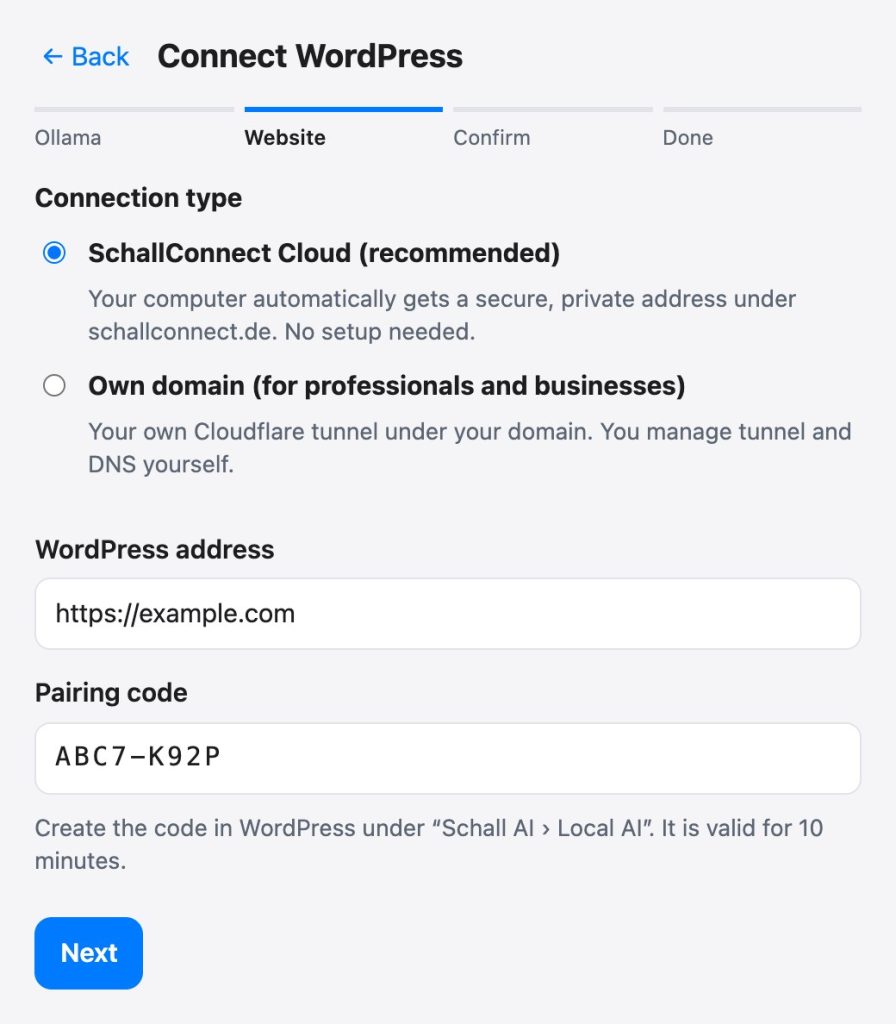
You generate the pairing code in WordPress under Schall AI › Local AI; it is valid for ten minutes. In the Connector, you enter your website address and the code. The recommended connection is SchallConnect Cloud, which needs no setup. If you manage tunnels and DNS yourself, you can use your own Cloudflare tunnel under your own domain instead.
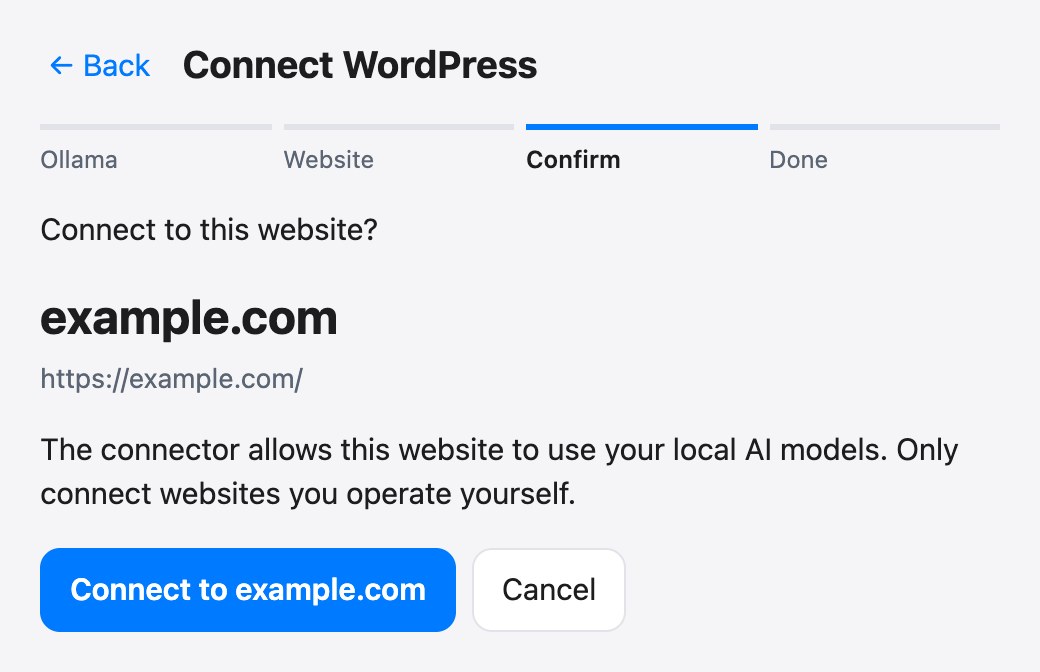
Confirm
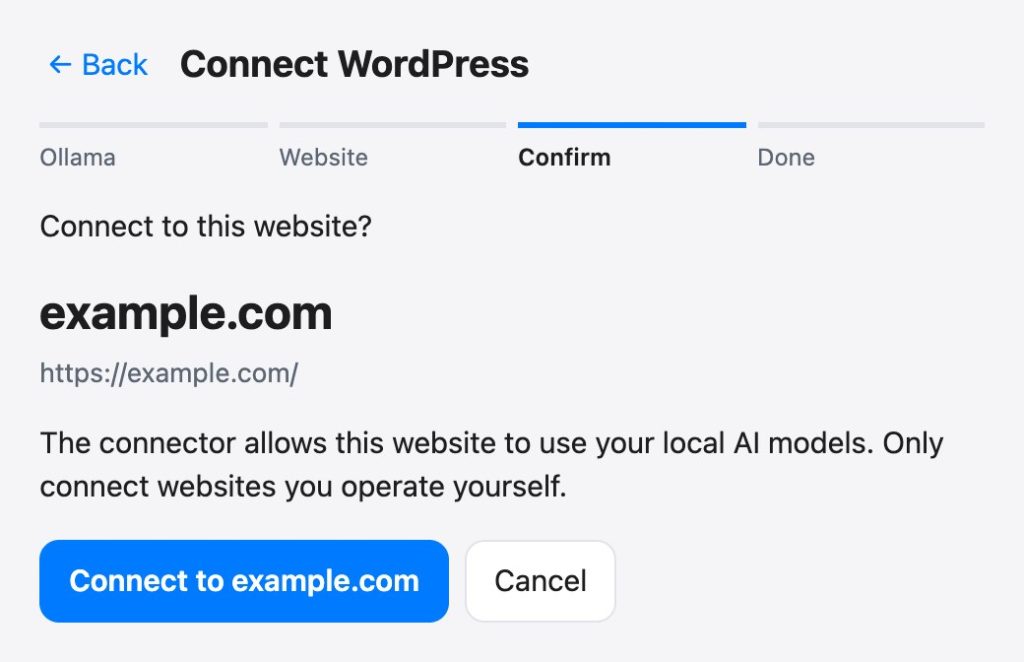
You can see which website you are connecting to.
Before the connection is established, the Connector displays the name and address of the website and asks for confirmation. Afterwards, your local models will only be available to this one website. You can disconnect at any time, either in the Connector or in WordPress.
Text models
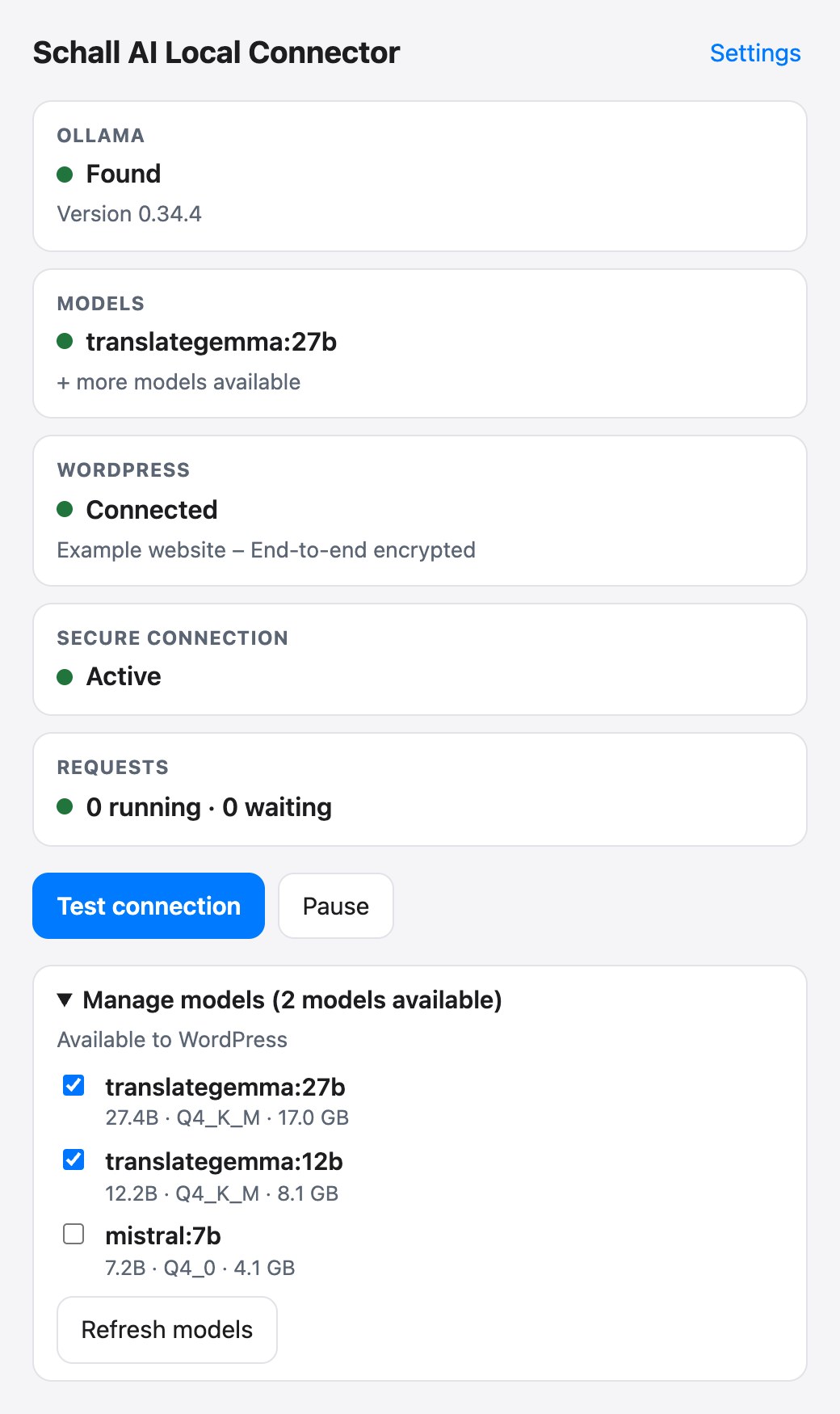
Only approved models are visible to WordPress.
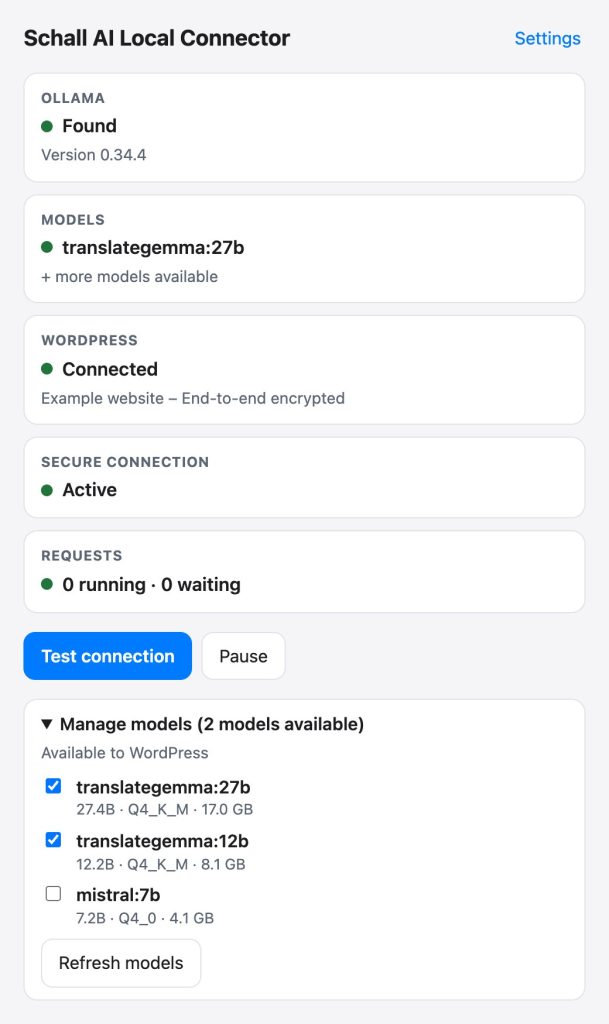
The Connector lists the models from Ollama with size and quantization. Checked models are available to your website, all others stay hidden. The Connector never downloads or deletes models; that is up to Ollama.
Images
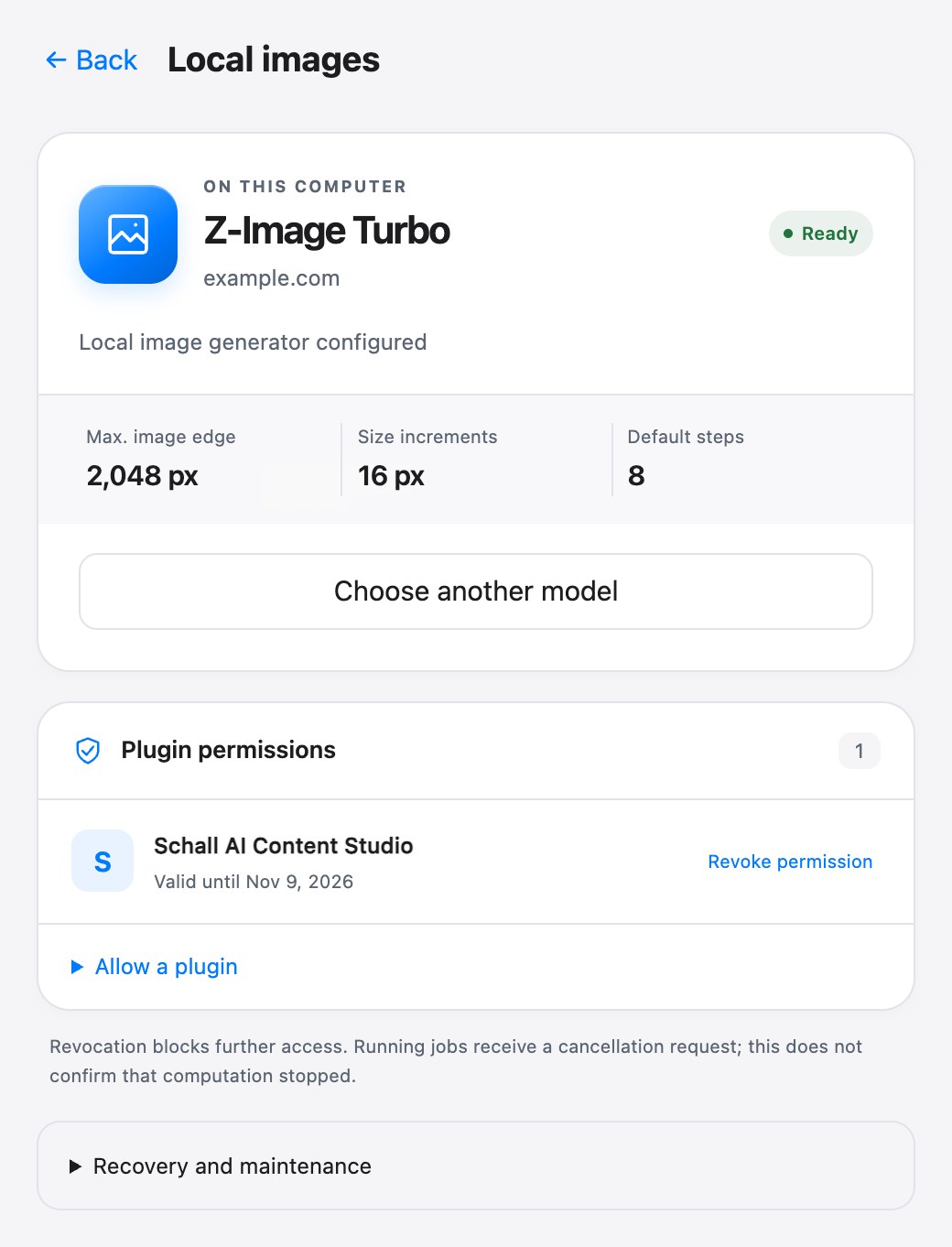
Local images, approved per plugin.
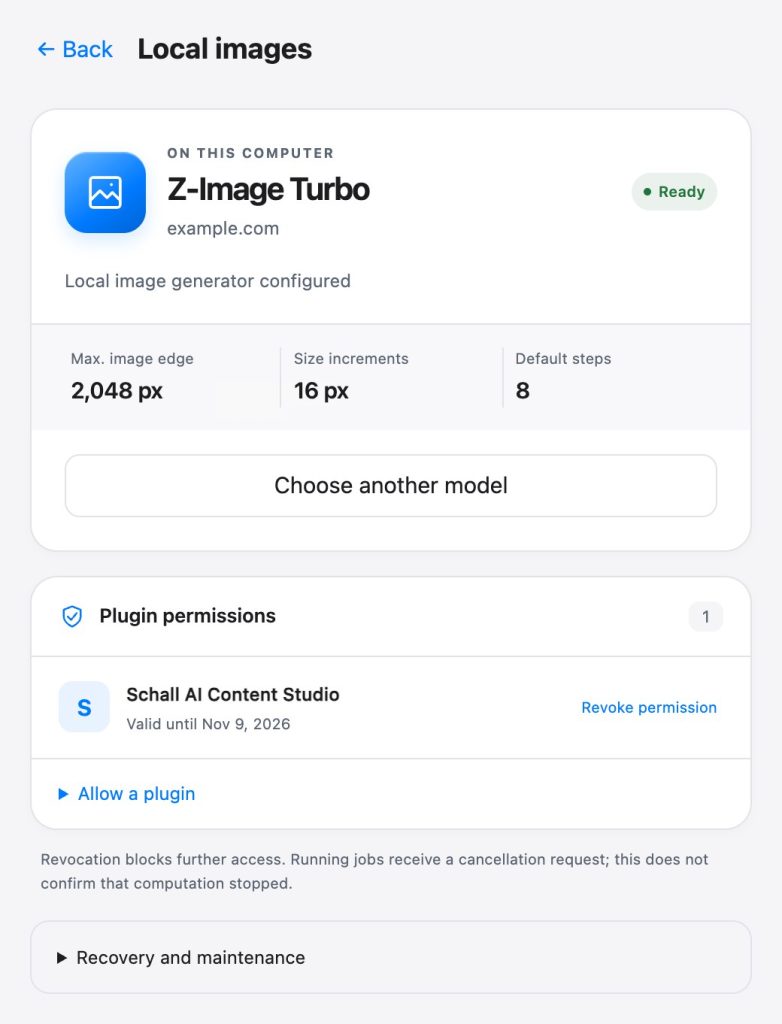
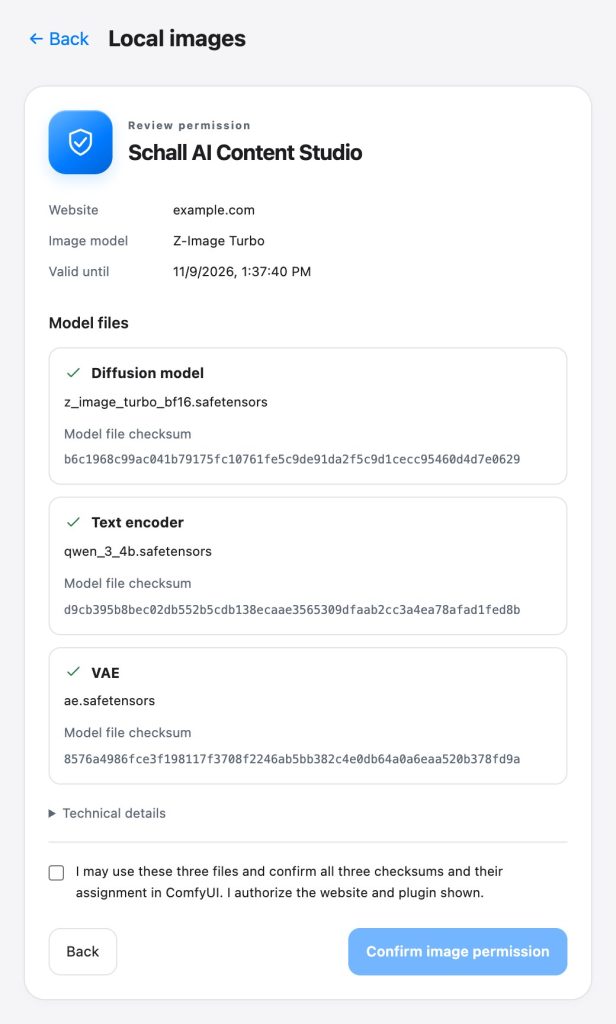
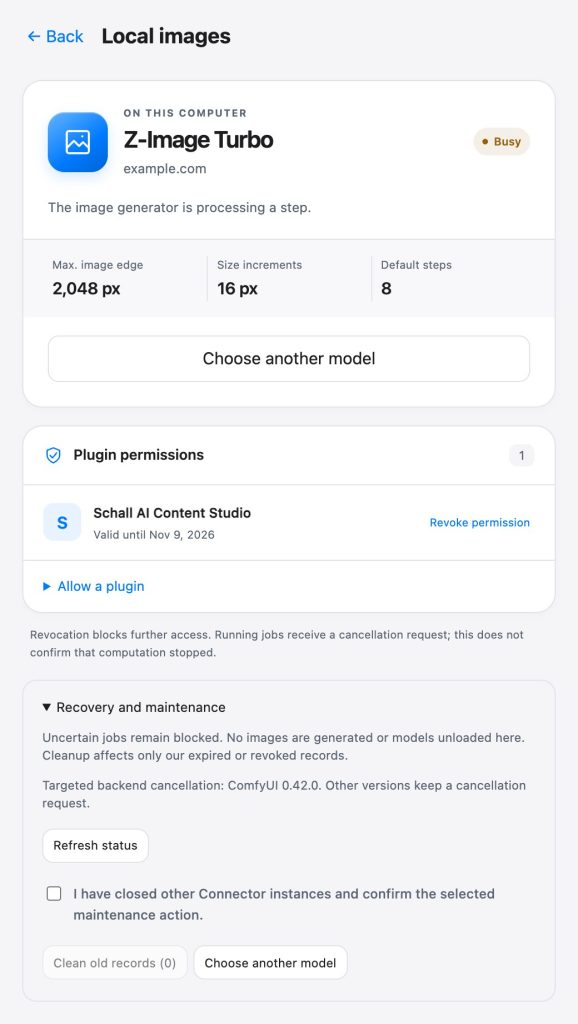
With ComfyUI and Z-Image Turbo, your computer also creates images. Each plugin needs its own approval with an expiry date. Beforehand, the Connector shows the website, image model, validity and the model files with their checksums. Revoking an approval blocks further access.
Settings
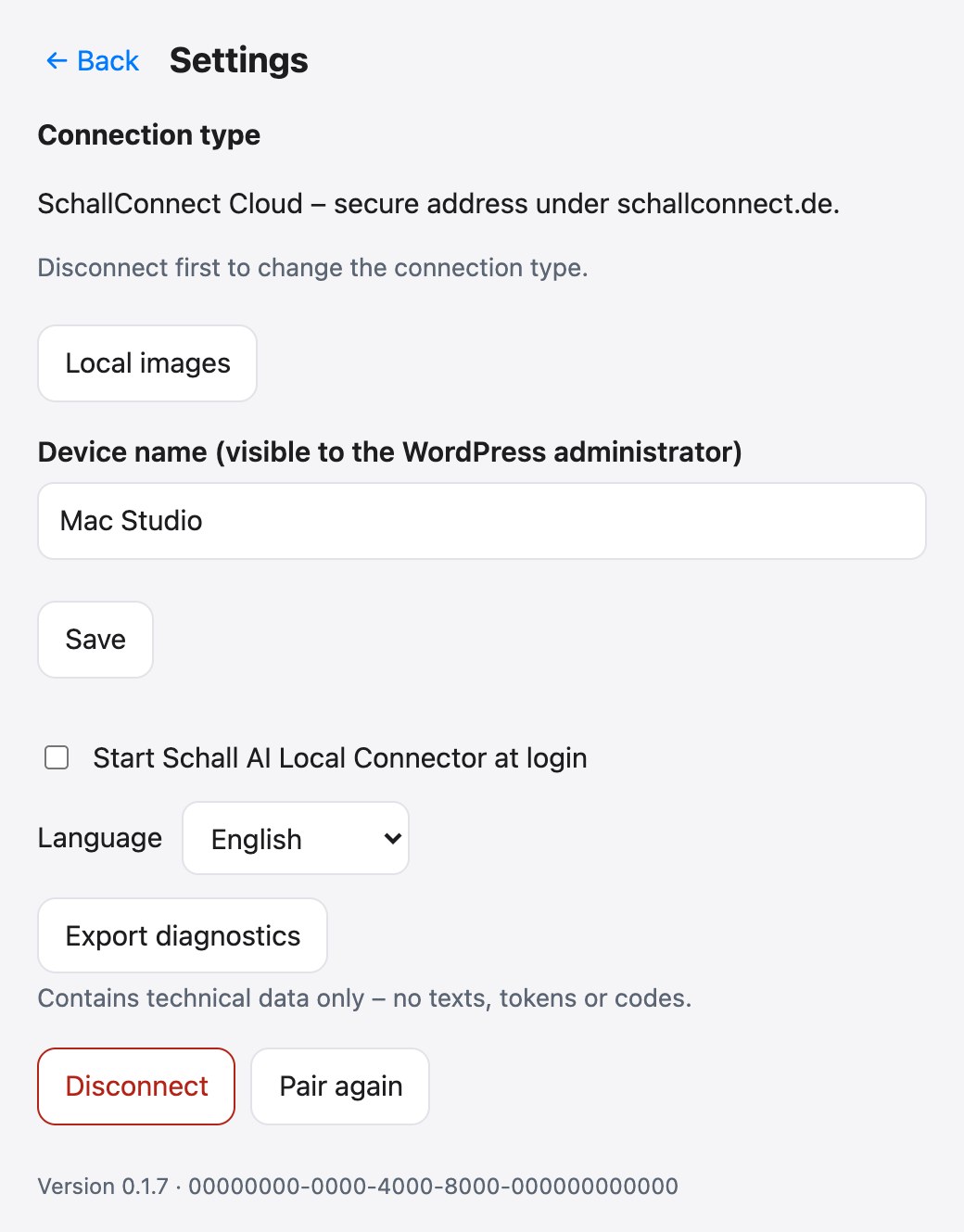
Device name, autostart, language, and diagnostics.
The device name also appears in WordPress, so you keep track of several computers. If you like, the Connector starts when you log in. The diagnostic export contains only technical information, no texts, tokens or codes.
04 — Feature list
All features at a glance.
Pairing and security
- Pairing via one-time code from WordPress, valid for ten minutes
- Website address is shown and confirmed before pairing
- Outgoing connections only, no port forwarding, no static IP
- End-to-end encryption is mandatory
- Ollama stays on the computer; only the Connector accepts requests
- Fixed list of allowed functions, everything else is rejected
- Access keys are renewed regularly
- Disconnect in the app or in WordPress
- Optional custom domain via your own Cloudflare tunnel
Text models (Ollama)
- Detects Ollama and shows its status
- Model list with family, size, quantization, and context length
- Enable each model individually for WordPress
- Never downloads or deletes models
- Responses are streamed continuously; cancellation terminates the request
- Structured outputs maintain their field order
Image models (ComfyUI)
- Uses a separately installed ComfyUI on the same computer
- Z-Image Turbo or an SD 1.x checkpoint
- Text to image, one PNG per request
- Fixed, verified process without external workflows
- Does not download model weights
- Finished images are sent encrypted to WordPress
Model search and approval
- Searches for model files in the usual ComfyUI folders
- Only reads filenames and file information, no model content
- Checks format, structure, and checksum
- Preview with website, plugin, files, and checksums
- Approval per plugin for 1, 7 or 30 days or until revoked
- Changed model files must be re-confirmed
Jobs and diagnostics
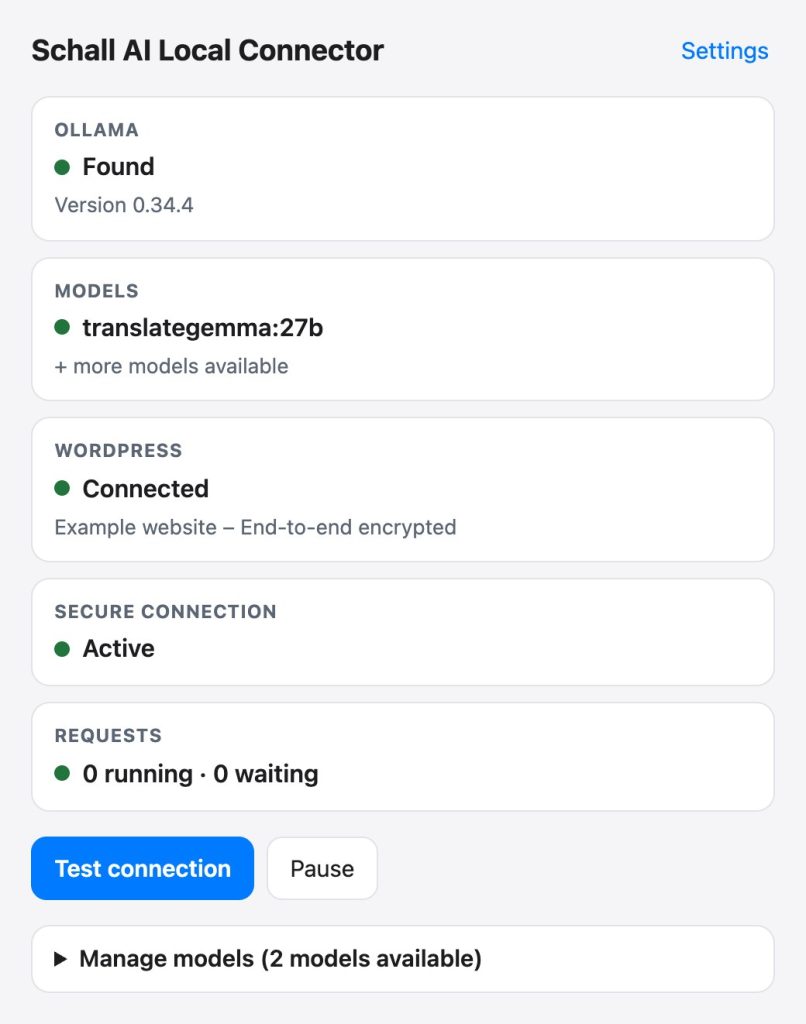
- Overview of ongoing and pending requests
- Text has priority, never two image jobs starting at once
- Pause and resume
- “Test connection” checks Ollama, WordPress, and connection
- Diagnostic export without texts or credentials
Interface
- Runs in the menu bar
- Optional start at login
- Interface in eleven languages
- Light and dark mode
- Keyboard operable, status messages also for screen readers
- Device name freely selectable, visible in WordPress
Keys and storage
- Credentials stored only in the macOS keychain
- No secrets in configuration files
- Content is neither stored nor logged
- The log redacts credentials automatically
- No system service, no administrator privileges required
In WordPress
- The counterpart is the shared AI Kit (“Local AI”)
- Overview with computer, status, Ollama version, and models
- Select Local Connector and model as provider in the plugin
- Jobs wait if the Connector is busy or offline
- The AI Kit cockpit shows the utilization
05 — Gallery
All views in detail.
Click to enlarge · App demo mode with sample data

06 — Works with
For all plugins with AI.
07 — Requirements
What you need.
The computer must be switched on and online whenever the website needs it.
Computer
Mac with macOS
Text models
Ollama on the same computer with at least one model
Image models
Optional: ComfyUI on the same computer with Z-Image Turbo or an SD 1.x checkpoint
WordPress
A Schall plugin with the shared AI Kit, the website accessible via HTTPS, PHP extension Sodium
License
An active license for a Schall plugin on the website
Network
Outgoing connections only; a separate Cloudflare account is required for your own domain
08 — Questions
Frequently Asked Questions
Do I need to configure anything on my router?
No. The Connector establishes the connection from your computer and requires neither port forwarding nor a static IP. Ollama itself will never be accessible on the internet; only the Connector accepts requests, and only from the linked website.
Can anyone read my texts in transit?
Content is end-to-end encrypted between WordPress and your computer. Only technical details such as time, size, and model names remain visible.
What happens if my computer is turned off?
After a short while, WordPress shows the Connector as offline. Jobs wait and resume as soon as the Connector is reachable again. If a fallback provider is set up in the plugin, it takes over in the meantime.
Which plugins use the Connector?
Pairing is handled by the shared AI Kit, so the Connector is available to all Schall plugins with AI features. It is proven in daily use with Content Studio and Content Radar.
When will the Connector be available?
Soon. It is already in daily use at the publisher; the customer version is being finalized.
Questions about Schall AI Local Connector?
Schall AI Local Connector will be available soon. We are happy to answer questions even now.